


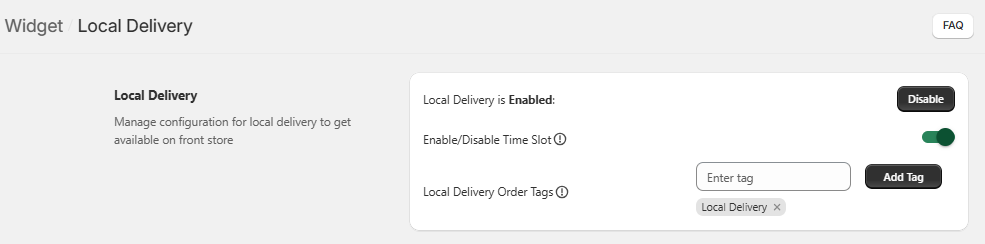
- In the first section – Local Delivery, you need to initially Enable it so proceed towards the further configurations.
- Then move forward to Enable Time Slot and toggle to Yes.
- The tags entered in the Local Delivery Order Tags field will be displayed in the Orders section for all local delivery orders.
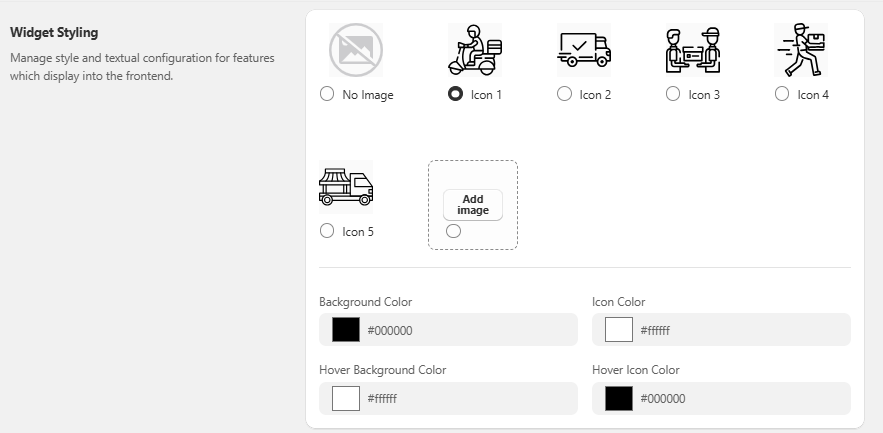
- The Widget Styling section contains various icons to choose from for Local Delivery along with configuring Colors for Background, Icon, Hover Background and Hover Icon.
- You can even upload an image to place it as an icon.
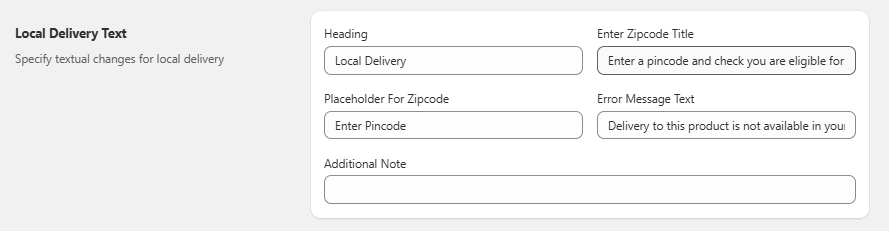
- Further, proceed towards the Local Delivery Text section where you can set the Heading, Zipcode Title, Placeholder For Zipcode, Error Message Text and Additional Notes.
- The section below contains Rescheduling configurations – an add-on feature which means it can be accessed only by paying the mentioned amount.
- Enable the rescheduling feature by toggling the switch to Yes for further configurations.
- Enter the text for Reschedule Button and then add the days before which you need to close the rescheduling in Close Rescheduling Before.
