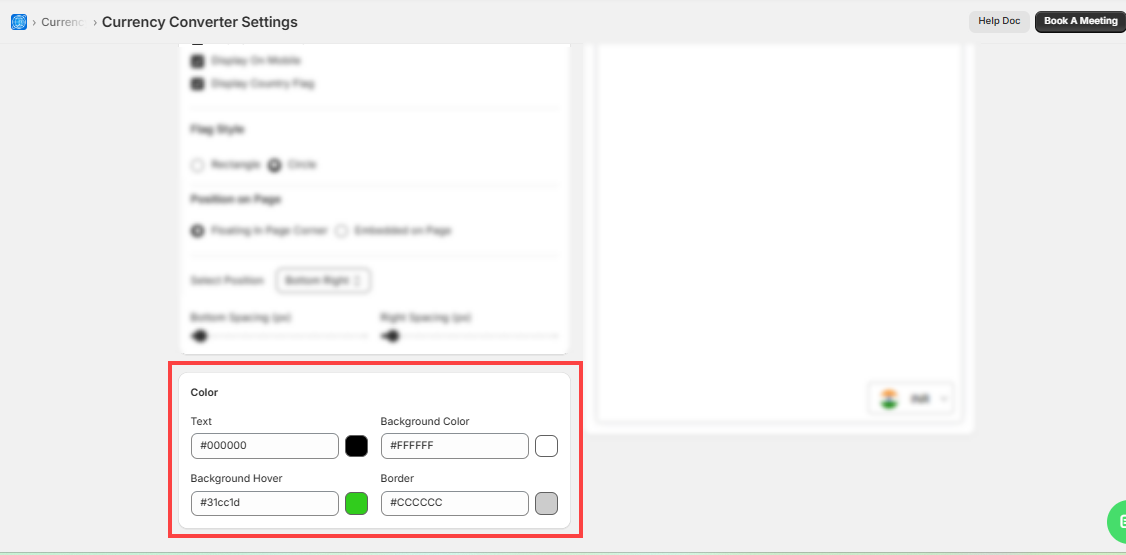


- You can customize the Display and Color settings for the “Currency Converter” widget.
Display
- Configure the Currency Converter widget for how you want to display it in the store. The following setting options are provided:
- Display on Desktop and/or Mobile: You can enable and display the widget on Desktop and/or Mobile.
- Desktop – Click on the switch to enable this widget for Desktop System/Laptop users.
- Mobile – Click on the switch to enable this widget for the Mobile/Tab device users.
- Display Country Flag – Click on the switch to display the Country flag with the county name in the Currency Converter dropdown list. So, the customers can identify the country as per the Flag.
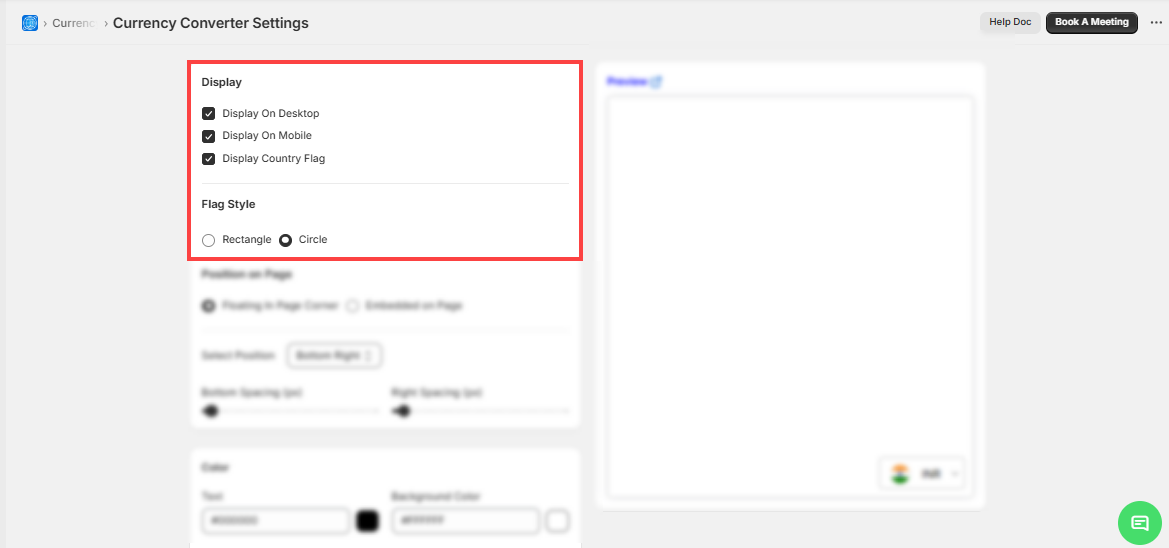
- Flag Style: If the Display Country Flag option is enabled, only then the “Flag Style” option is enabled. Select the style to display the country’s Flag in either Rectangle or Circle shape.
- Position on Page: Select the position of the widget on your store. You can select either Floating In Page Corner option or Embedded on Page.
- Floating In Page Corner: You can select the Floating position on your store as “Top Right”, “Top Left”, “Bottom Left”, or “Bottom Right”.
- Embedded on Page: You can set the embedded on-page by copying the ‘div class’ code.
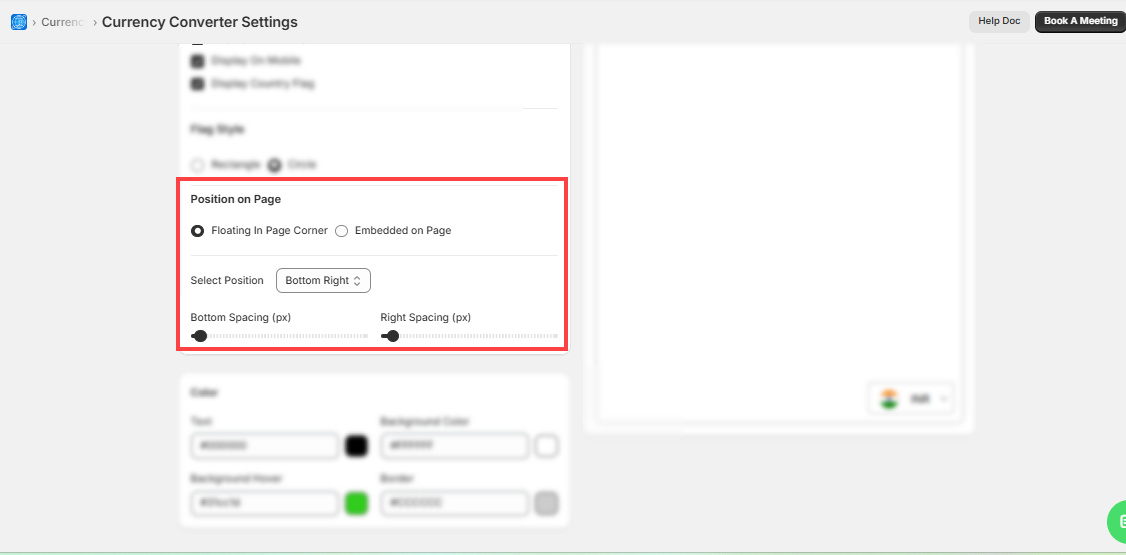
- You will get the real-time ‘Preview’ on the right side as you configure anything.
Color
- Customize the color combinations of the Currency Converter widget. The custom color picker tool is provided to choose the desired color as per your store’s theme.
- Text Color – Choose the color for the Text color of the currency text.
- Background Color – Choose the color for the background of the switcher.
- Background Hover – Choose the color for the mouse hover effect.
- Border – Choose the border color of the switcher.
- You also directly add the Color code if you have specific codes for the switcher. You will get the real-time ‘Preview’ on the right side as you configure anything.