


You can customize the popup appearance for URL redirection by inserting the relevant content with custom CSS.
Here you will find options such as template selection to display the popup with logo and the message to redirect in the specific URL. As per the Popup settings, you can also preview the Popup.
Navigating to Settings > Redirect Popup Setting.
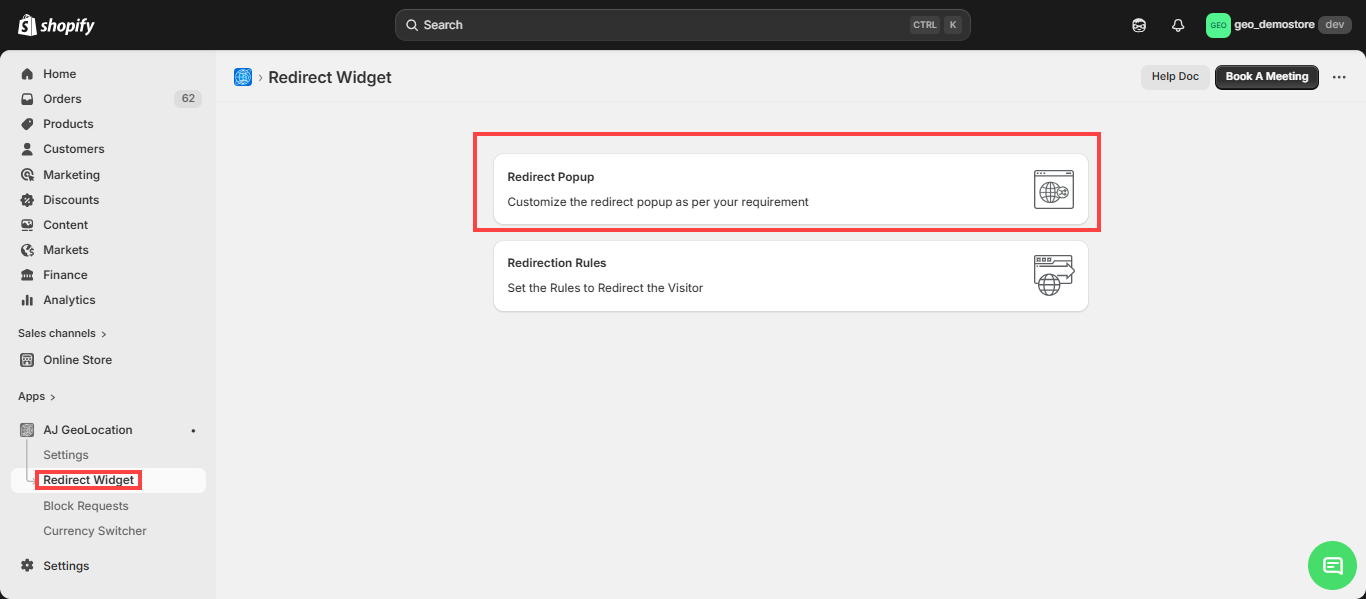
- By on you will see the setting on left side and right side you will see the preview of the page.
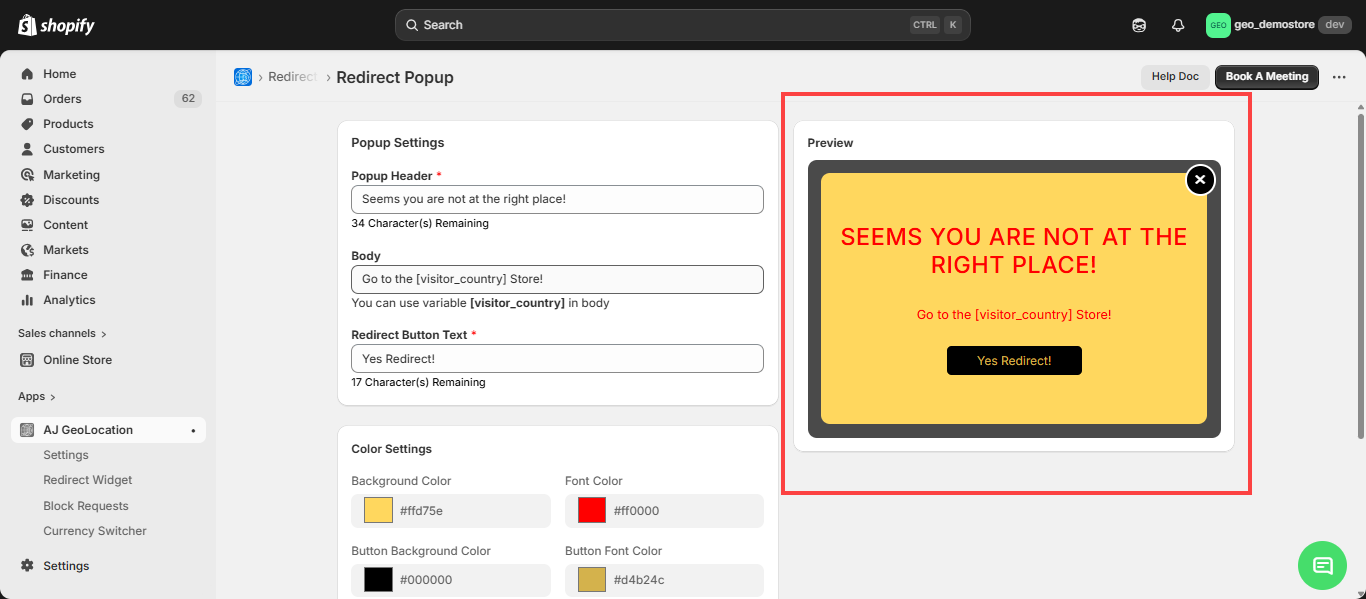
- In the Popup setting you can update the below setting:
- Popup Header: The title or headline of the popup, intended to grab the user’s attention.
- Body Text: The main content area where you can provide detailed information, messages, or instructions to the user.
- Redirection button text: The text displayed on a button that, when clicked, redirects the user to a specific page or action.
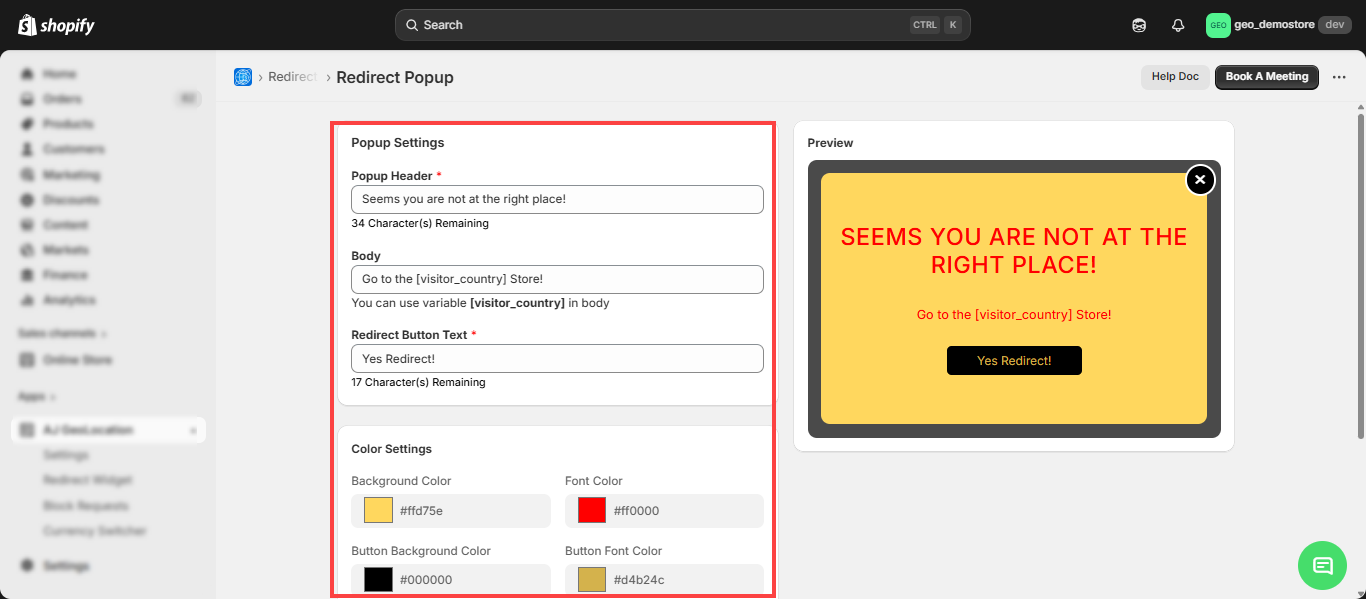
- In the Pop setting you can update the below setting:
- Background Color: Change the background color of the popup to match your brand.
- Font Color: Change the background color of the popup to match your brand.
- Button Background Color: Adjust the background color of the redirection button to make it stand out and attract user interaction.
- Button Font Color: Set the color of the text on the button to ensure it is legible and complements the button background color.
- Customize Style: Additional options to further personalize the popup’s appearance, such as border styles, padding, margins, and more, allowing for a fully tailored user experience.
- After Configure all the settings click on the “Save” button.