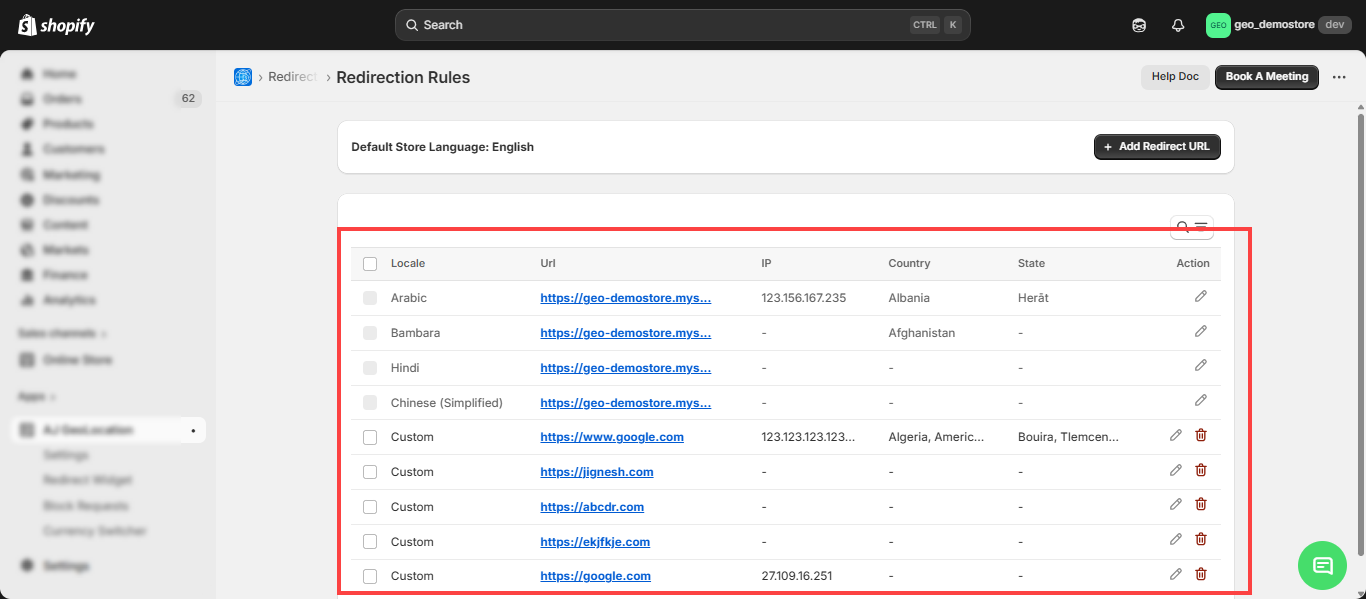


To configure the redirection rule you will navigate to the Settings > Redirection Rule. It is based on various criteria such as location, preferences, or campaign-specific parameters.
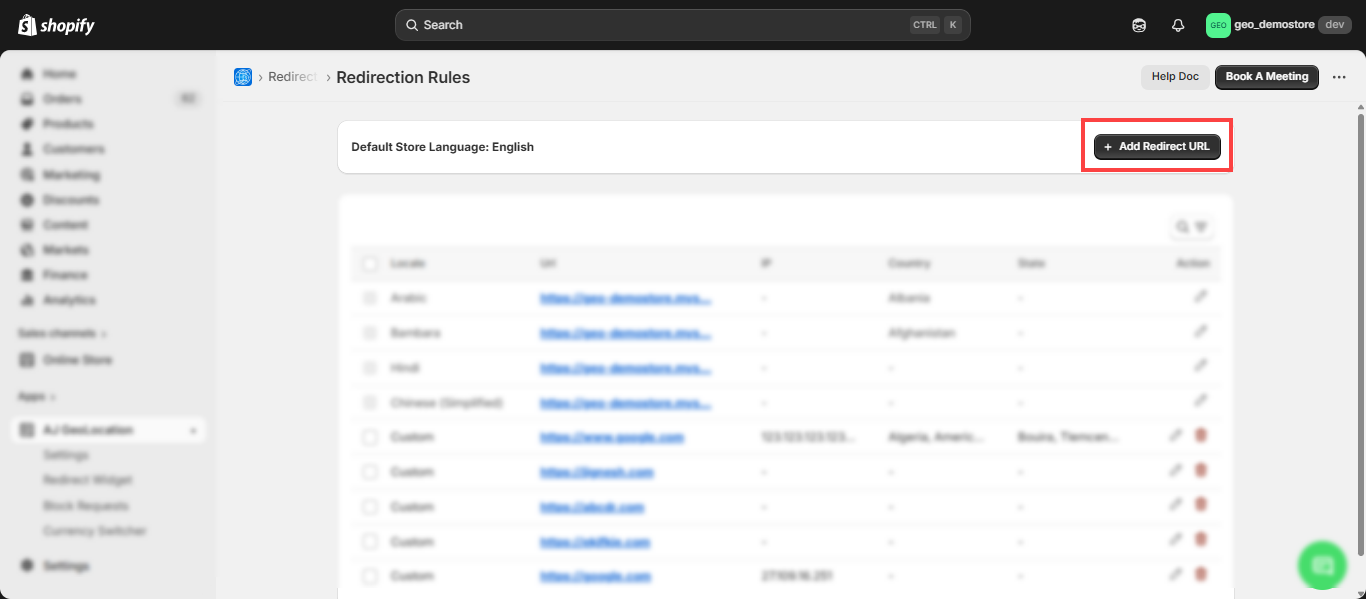
- By clicking the redirection rule here on the page, you will see the default store language and the “Add Redirection URL” button. By clicking on the “Add Redirection URL” button you can configure a URL.
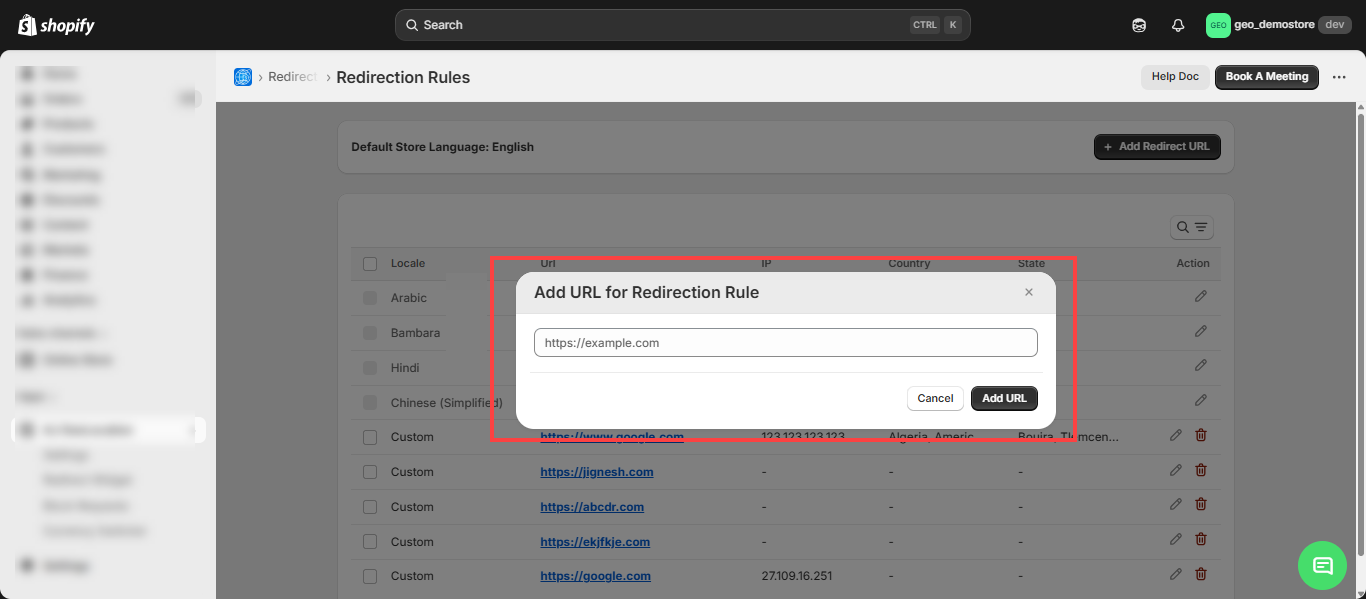
- Now a pop-up will open where you need to enter the URL to which you want to redirect your customers based on their IP address, city, and state.
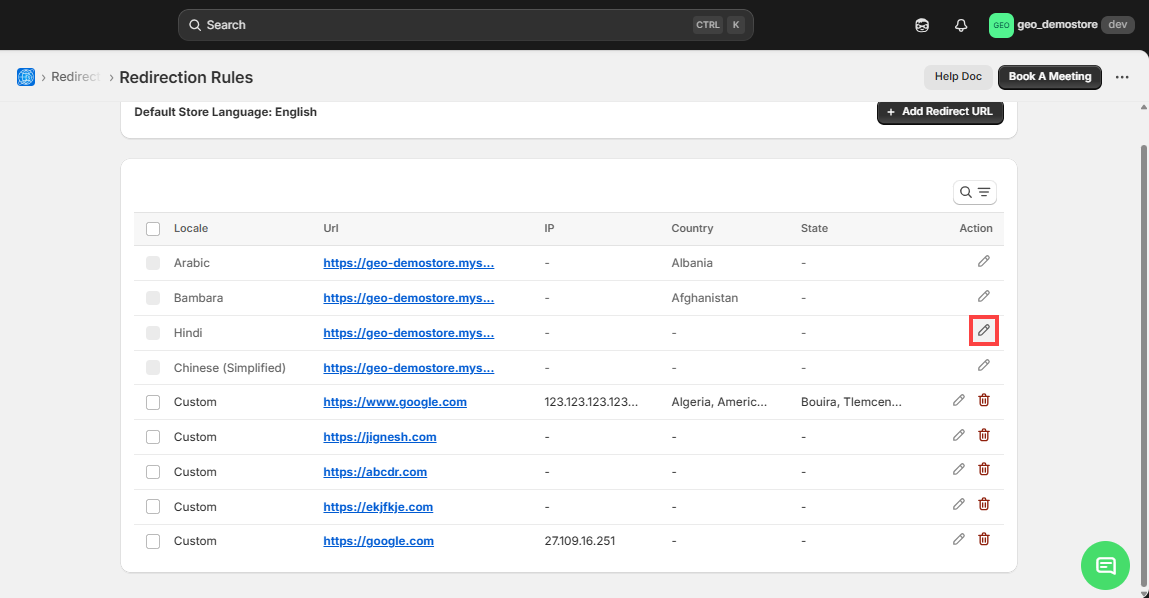
- Once you add the link, it will appear in the list. By clicking on the ‘Edit Icon’ ✏️, you will be taken to the redirection details page where you can add information such as IP address, country, and state details.
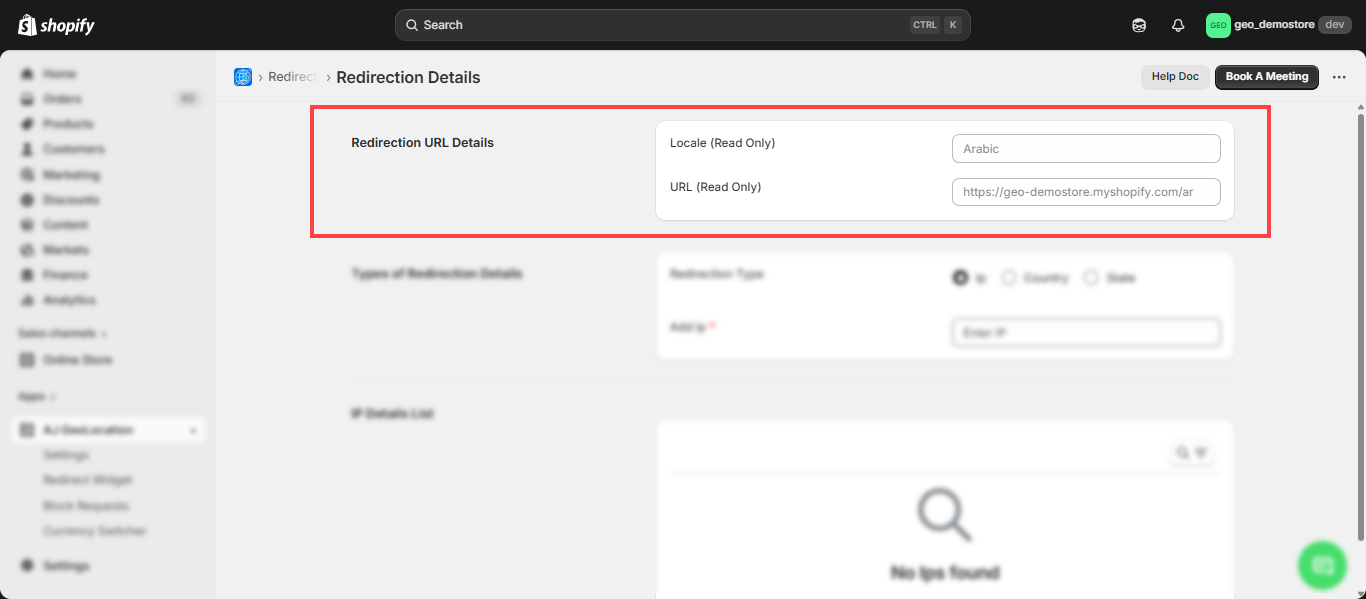
- On the redirection detail page, you can view the Locale (Region) and URL in read-only mode.
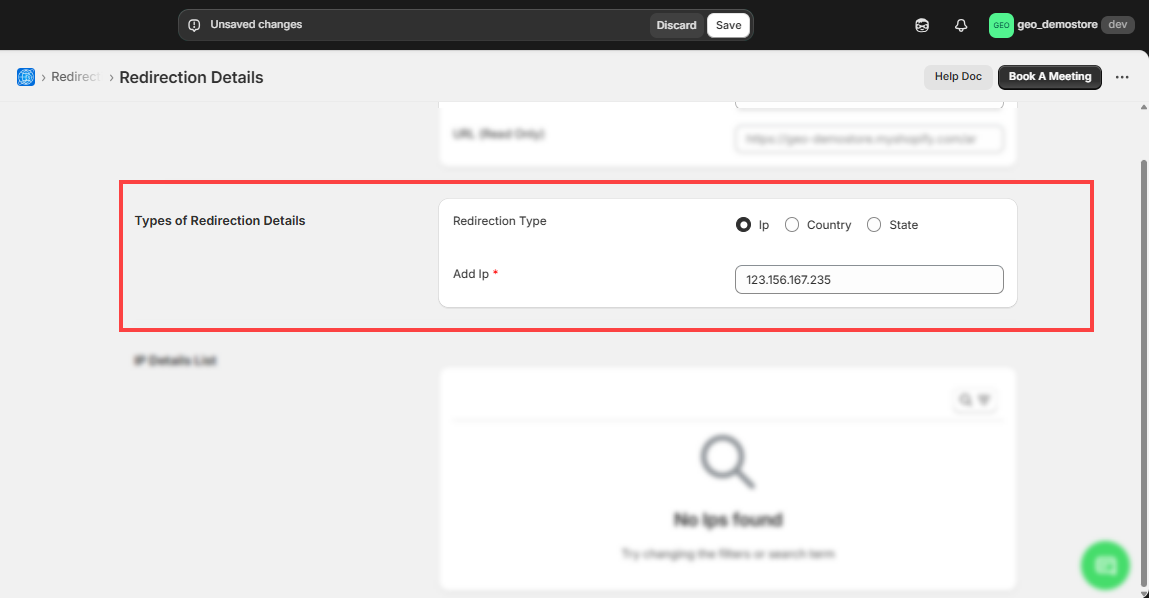
- You can set the redirection type based on IP, country, and state.
- To configure the URL based on IP,enter the IP address to which you want to redirect your customer after that click on Save button.
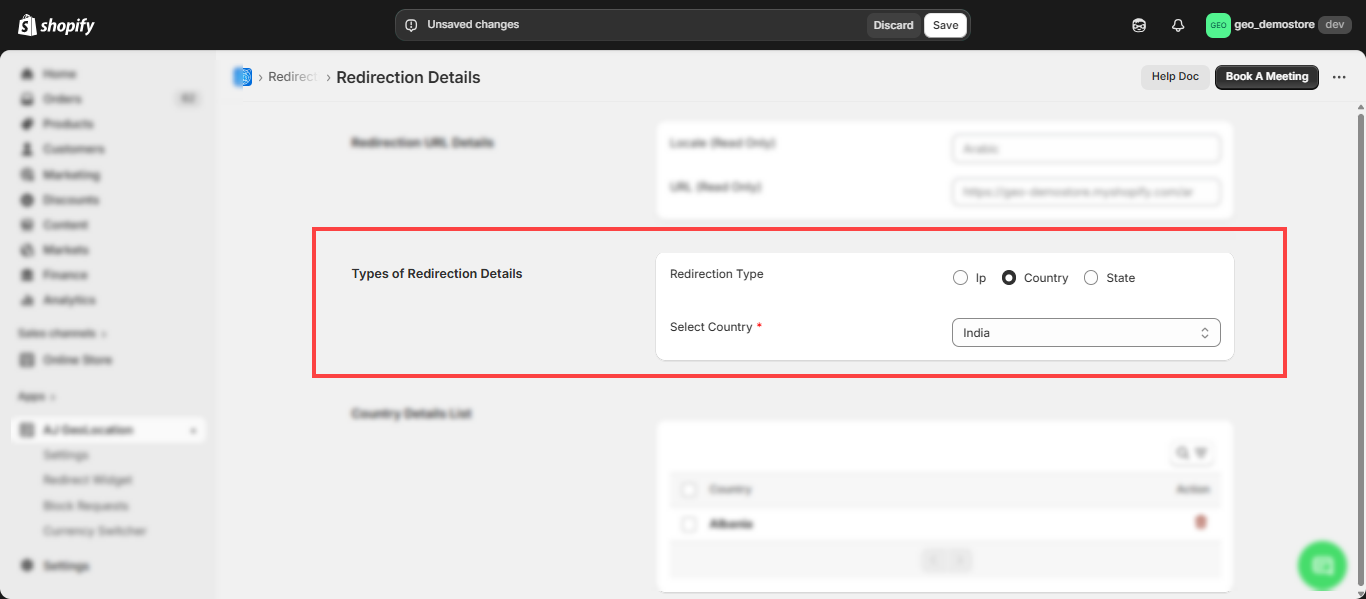
- To configure the URL based on Country,from the drop-down select your county to which you want to redirect your customer after that click on Save button.

- To configure the URL based on State, first select the country from the drop-down menu, then choose the specific state to which you want to redirect your customer.
Note: You can configure multiple entries for IP addresses, states, and countries.
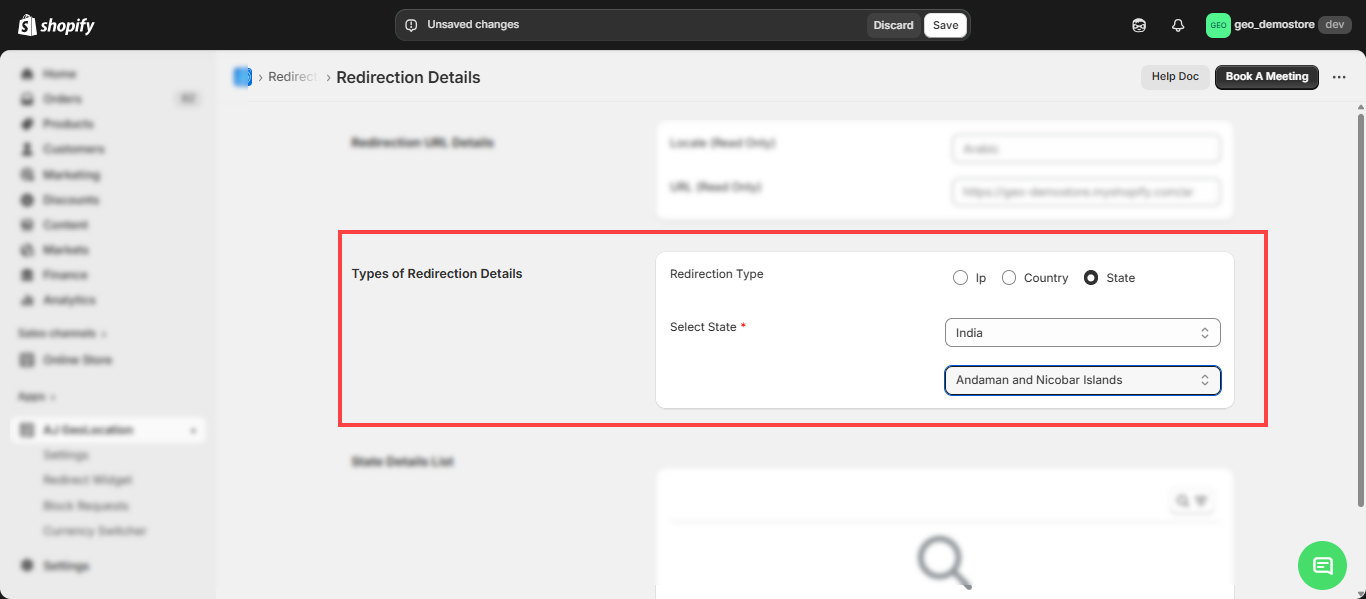
- After configuring the states, click on the Save button, and the states will be automatically added to the State Details list.
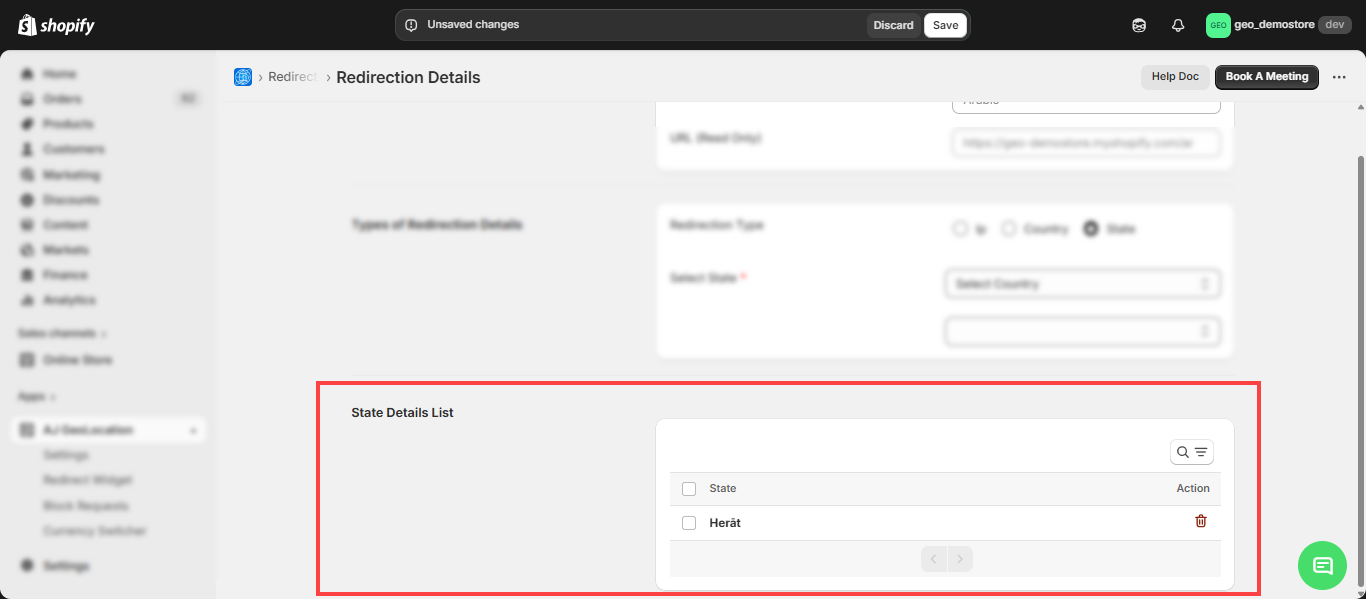
Note: Once you add the IP address and country, they will appear in the IP Details list and Country Details list, respectively.
- On the redirection rule page, you can view the configured URL along with its settings. You can also modify the data using the edit icon.