


- In this section, you can configure the days and time slots available for shipping to meet your delivery needs.
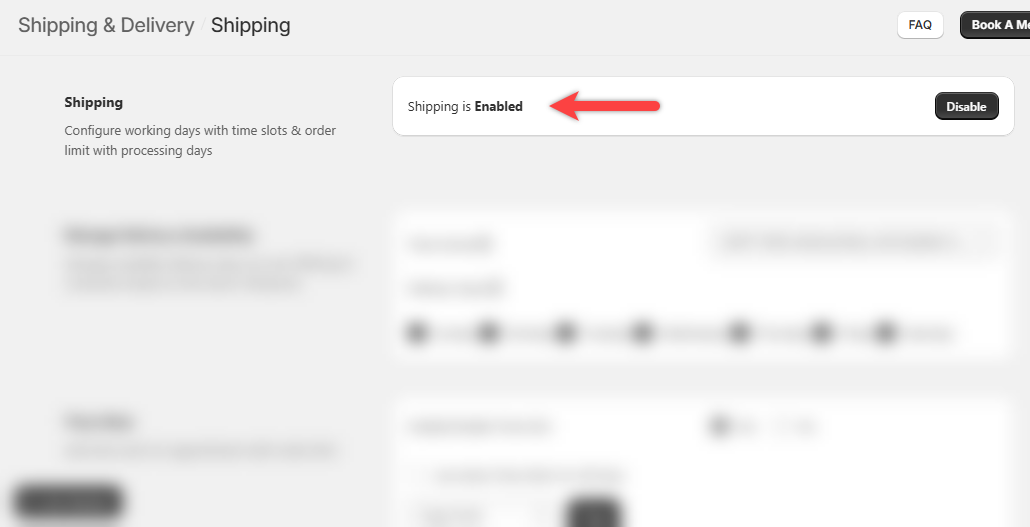
- Initially, you need to Enable Shipping in order to configure the consequent fields.
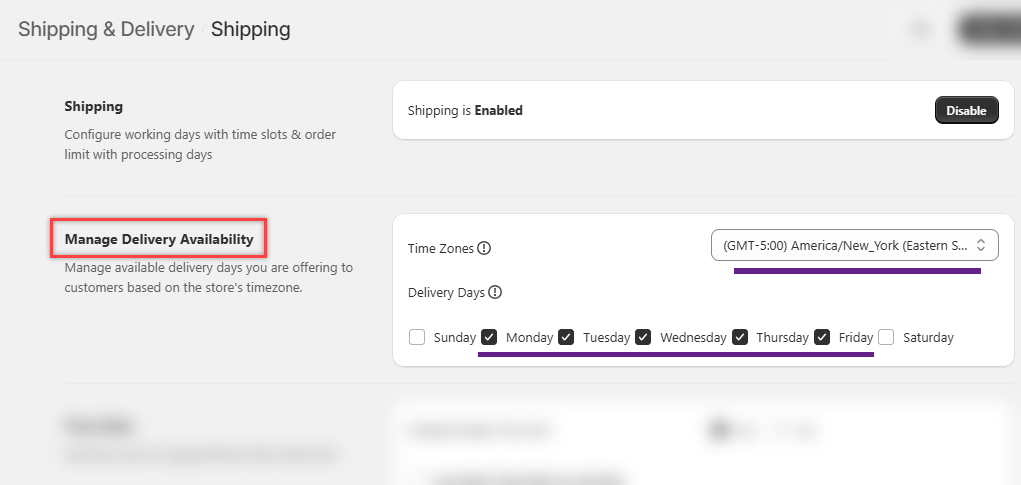
Manage Delivery Availability
- In this section, you need to first, select Time Zones and then accordingly select the days on which you want to enable shipping through Delivery Days.
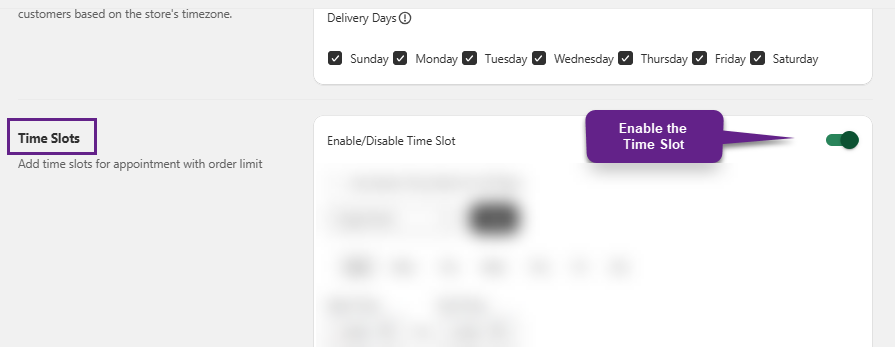
Time Slots
- If you want to use this particular functionality, then firstly, you need to Enable the time slots for proceeding configurations.
- The selected Delivery Days will be displayed in the Time Slots section.
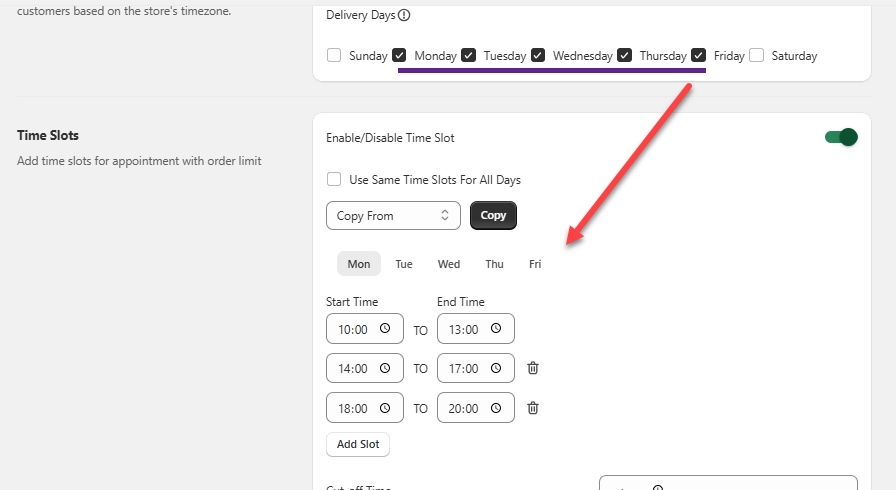
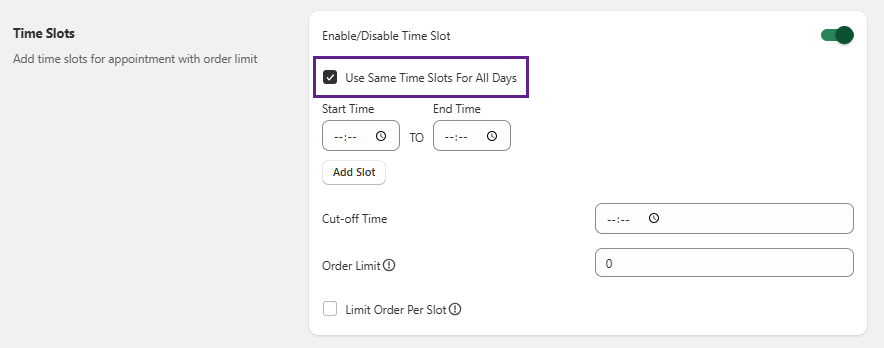
Use Same Time Slots For All Days
- To apply the same time slots to all selected days, you can simply check the box for this specific field. By doing so, you can directly set the time slot(s).
Duplicate Time Slots
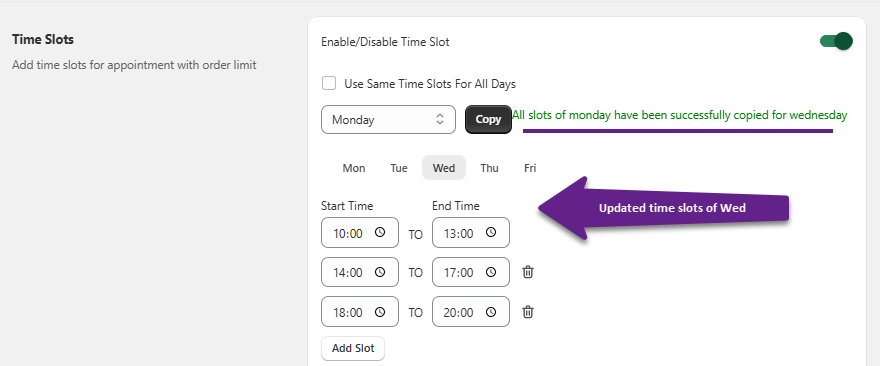
- You can copy a specific day’s time slot by choosing that day by means of the Copy From field. Once you select the day, click on the Copy button and all the selected day’s time slots will be copied.
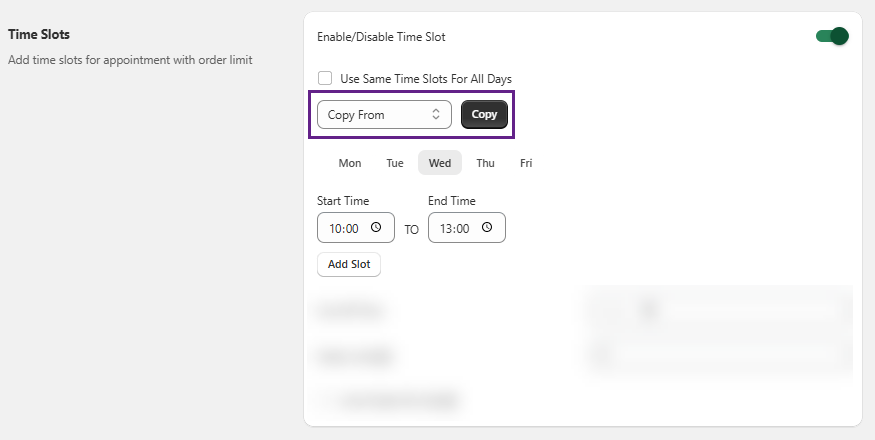
- For instance, you need to copy the time slots to “Wednesday” and so initially you will navigate towards “Wednesday”.
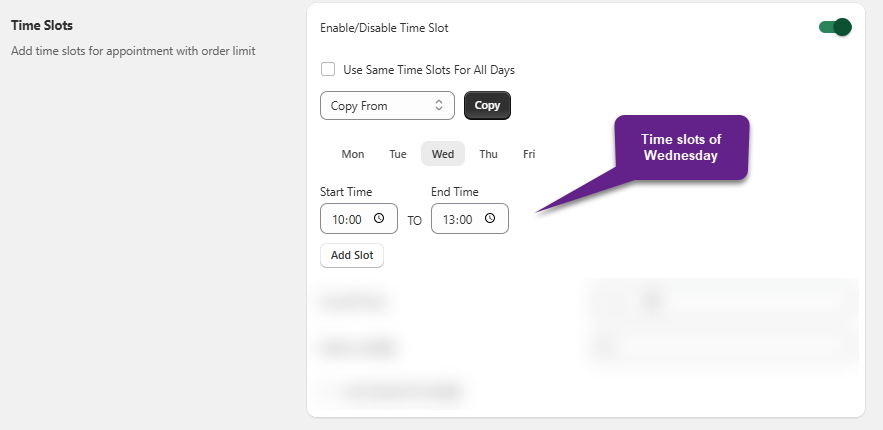
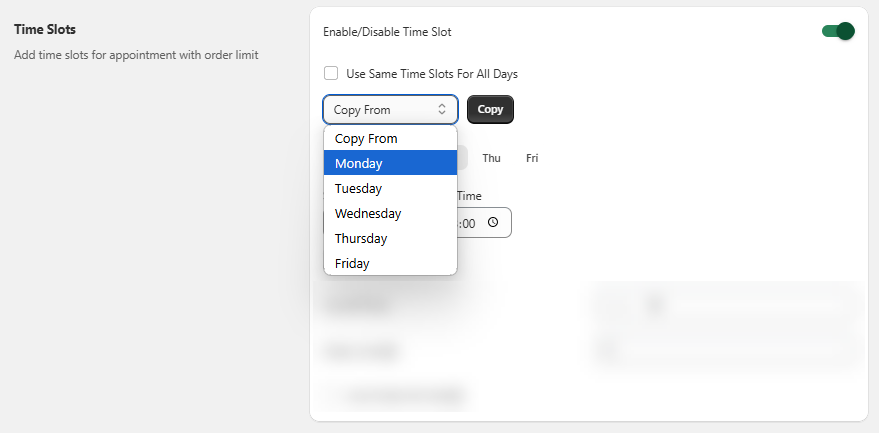
- Now we will proceed to choose the day from which you need to copy the slots. In this case, the time slots of “Monday” have to be copied and so, once the day is chosen, click on the Copy button.
- Once the time slot(s) gets successfully copied, a success message is displayed.
Time Slots
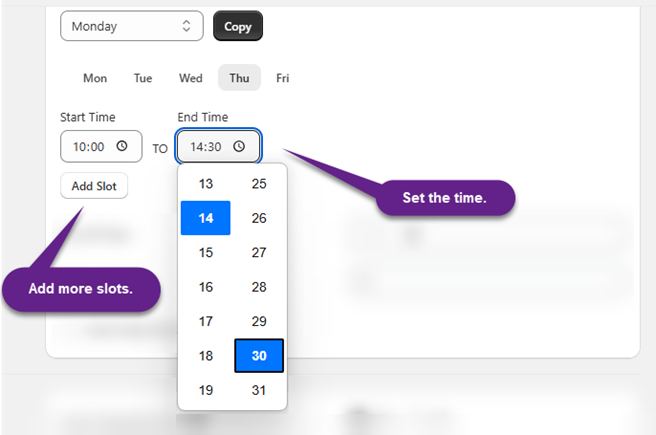
- You can set a time slot by defining the start and end time as per your preferences. Through the Add Slot button, you will be able to set additional slots as well.
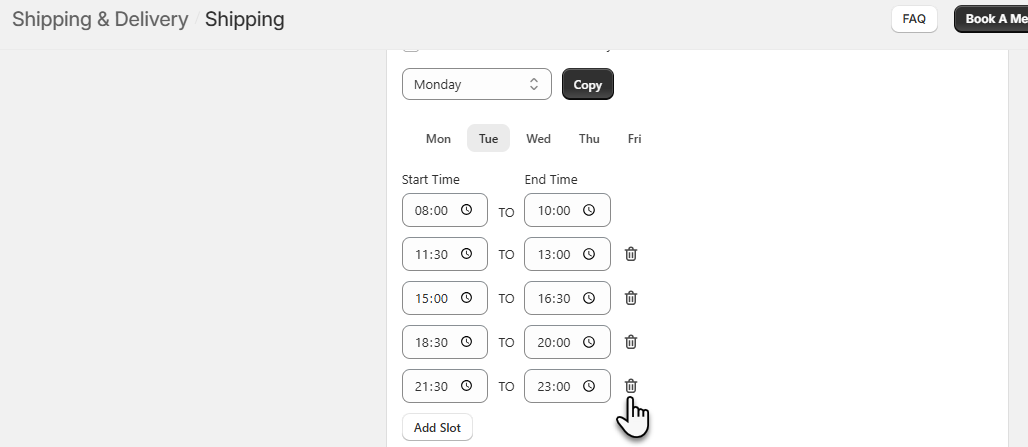
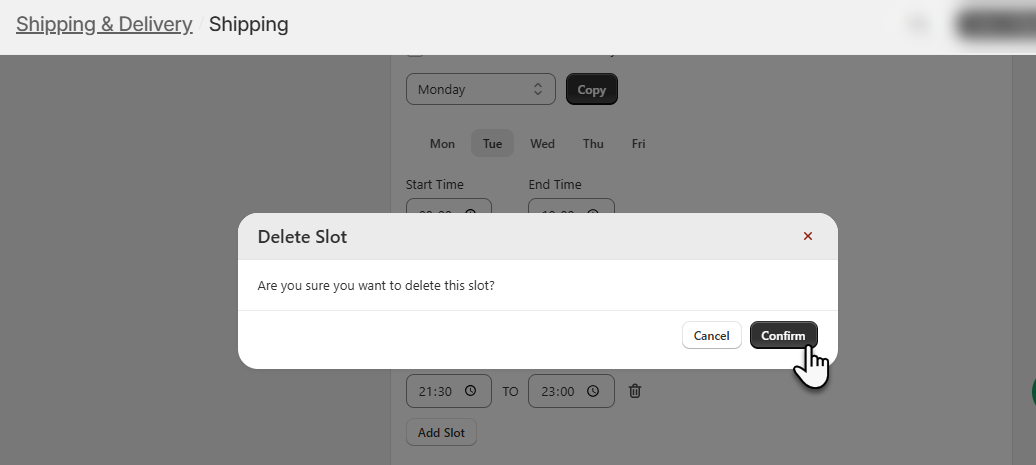
- For deleting a time slot, you just need to click on the Delete icon displayed beside the respective slot; by doing so, a confirmation pop-up will appear, proceed with the deletion by clicking on the Confirm button.
Cut-off Time
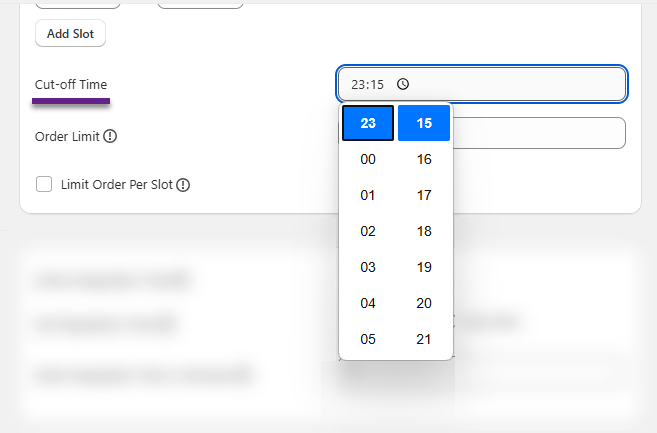
- From the time that has been entered in the Cut-off Time field, the time slots of that particular day will not be displayed in the front store and the customers will not be able to place an order.
Order Limit
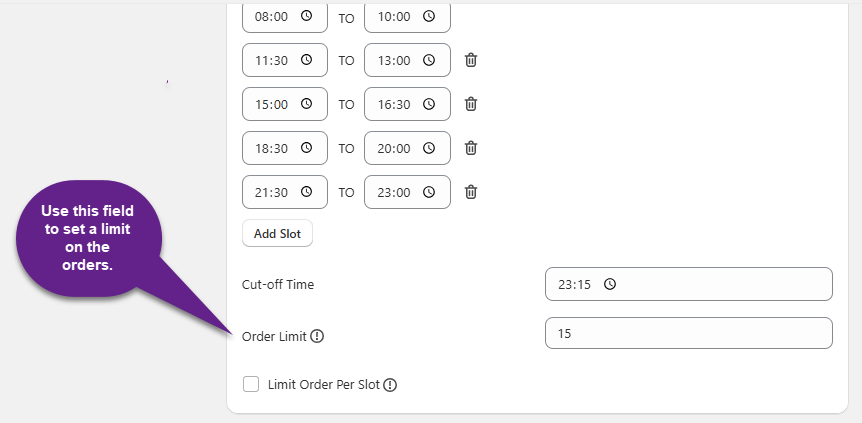
- Through this field you will be able to limit the processing orders for the day to the value that you have entered. For instance: You have entered “Order Limit – 15”, so for that particular day, a maximum of 15 orders will be processed.
- Now, note that, to receive unlimited orders, the value should be entered as “0”.
Limit Order Per Slot
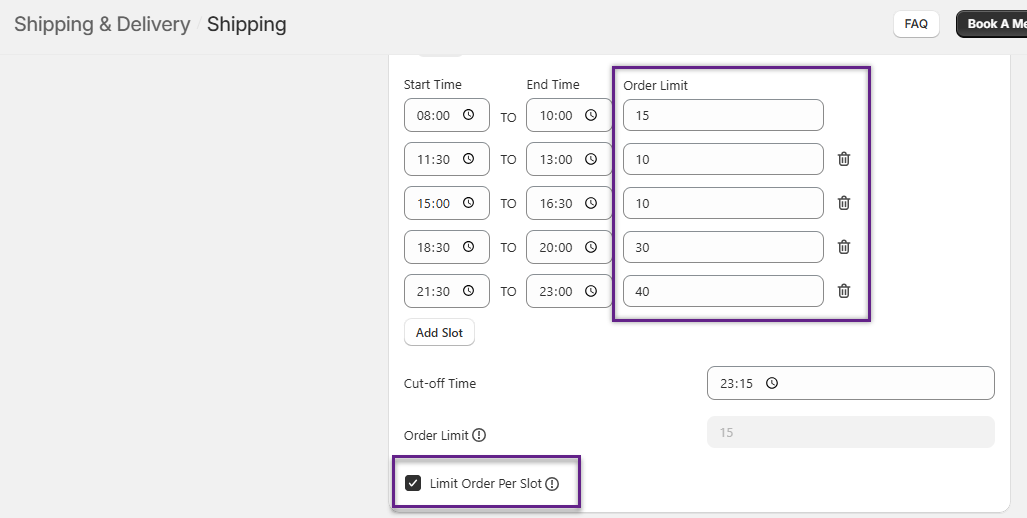
- The checkbox in this field, when clicked upon, would add a processing order limit for a particular timeslot(s) and the Order Limit field would be disabled.
Set Up Preparation Time
- You can configure the preparation time either on an hourly basis or by day, depending on your preference. When you set the preparation time, the system will automatically disable the corresponding time slots and delivery dates based on your configuration.
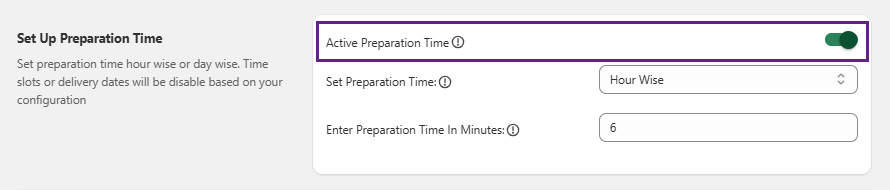
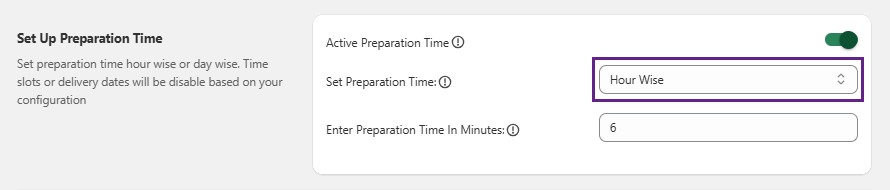
- Firstly, Enable preparation time to proceed with the configurations and then move towards selecting the Hour Wise or Day Wise preparation.
Hour Wise
- Selecting Hour Wise preparation will display “Enter Preparation Time In Minutes”.
- You should enter the value according to minutes and, accordingly, the time slots or delivery dates will be disabled.
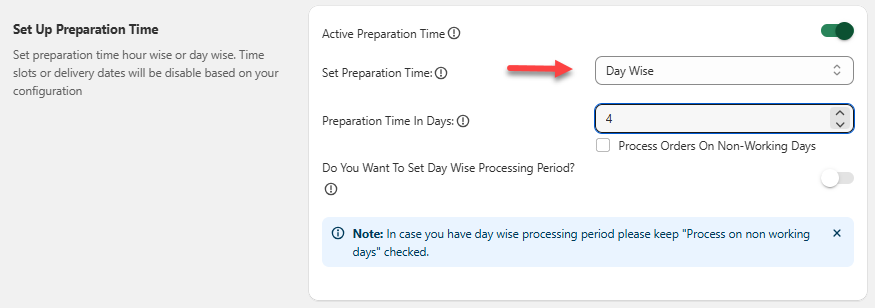
Day Wise
- Select Day Wise to proceed with the respective configurations. Preparation Time In Days would be the first consequent field where you need to enter the minimum number of days it would take to process an order.
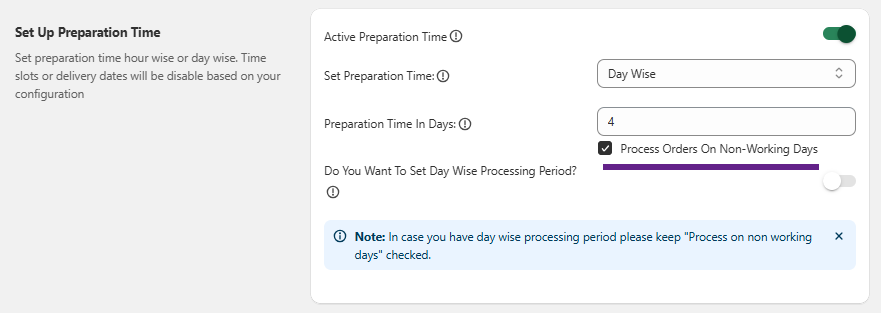
– Process Orders On Non-Working Days
-
- This checkbox field allows the system to process orders on days typically designated as non-working days. When enabled, orders will be processed on the non-working days according to the configured settings. If left unchecked, orders will be processed only on working days.
- For instance, if Wednesday and Thursday are the only working days as per the set configurations. Now, if this specific field has been checked, then the orders will be processed also during Sunday, Monday, Tuesday, Friday and Saturday, accordingly. However, if the field is left unchecked, then the orders will be processed only on Wednesday and Thursday.
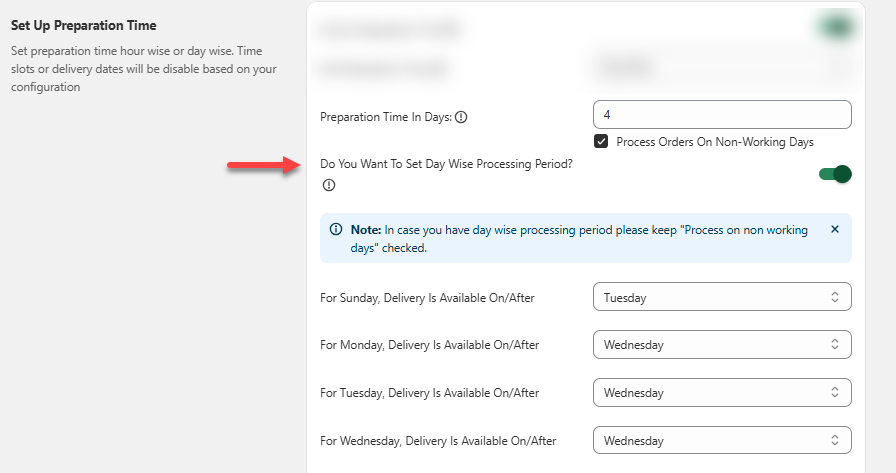
– Day Wise Processing Period
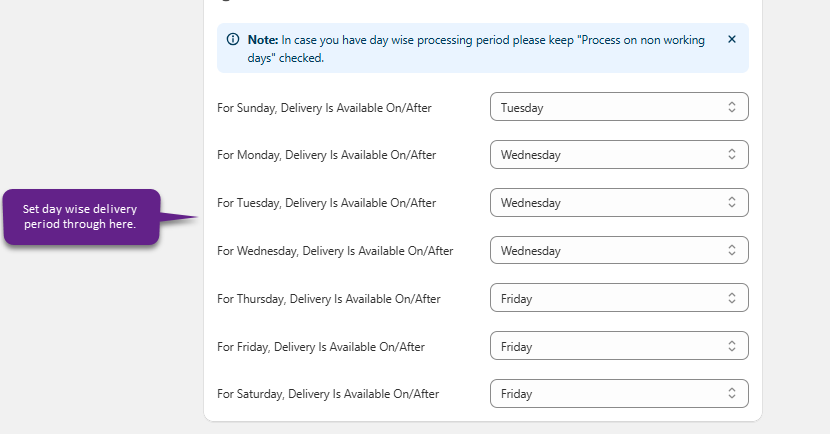
- When you have varied delivery rules for various weekdays, then you need to opt for this section. Foremost Enable this section and then the succeeding fields will be displayed.
- Note that when configuring this section, you need to select the checkbox of “Process Orders On Non-Working Days”.
- Here, you can set a processing time based on days. For example – if you have to set the process time for Sunday – you choose Wednesday as processing day. So, on/after Wednesday delivery will be available.
Shipping Restriction & Tagging
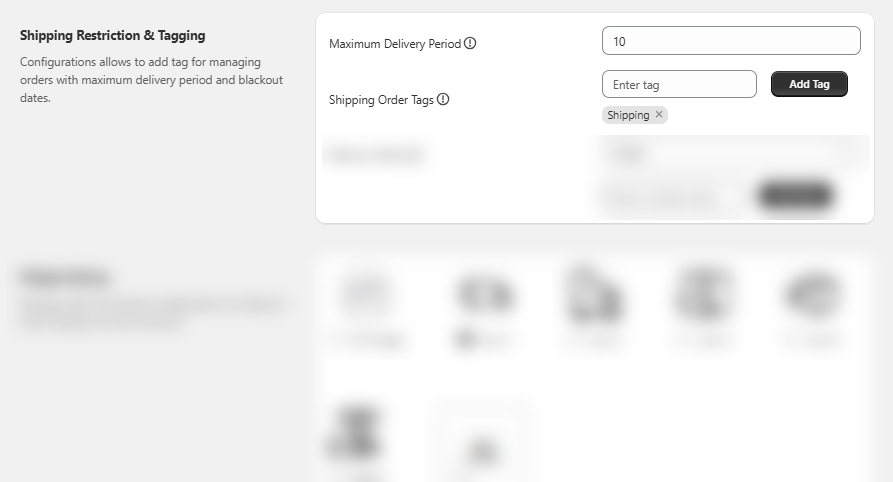
- In this section you can manage tags, set maximum delivery period as well as configure blackout dates.
- In the Maximum Delivery Period field, specify the number of days you want to set as the maximum limit of the delivery. After that period, customers would not be able to select the delivery date.
- In the Shipping Order Tags field, the entered tags will be displayed for all the shipping orders.
– Blackout Dates
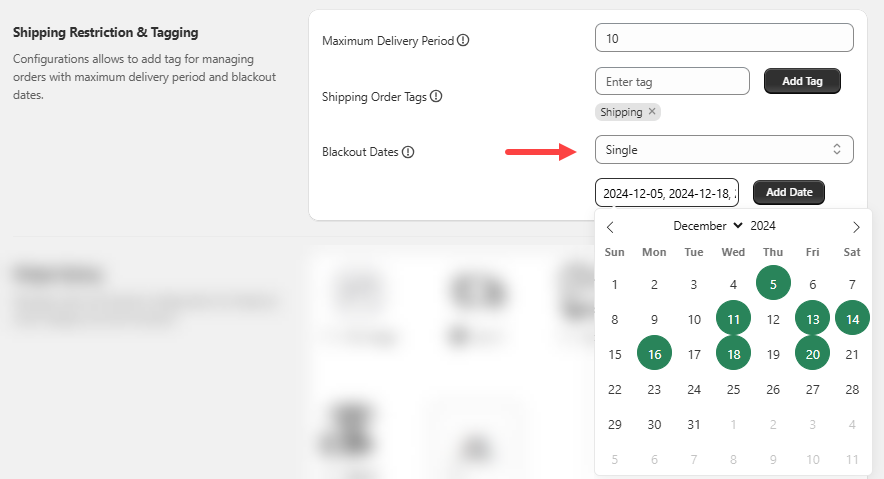
- You can select days on which you are not available to deliver the orders.
Single
- Opting for Single allows you to add individual dates.
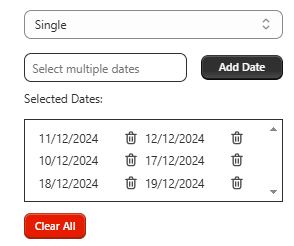
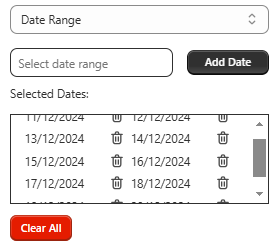
- Once you click on the Add Date button, all the selected dates will be listed under Selected Dates.
- Now, in order to delete; individually you can delete by clicking on the delete icon or else by clicking on Clear All, you can delete all at once.
Date Range
- You can add a specific range via this option.
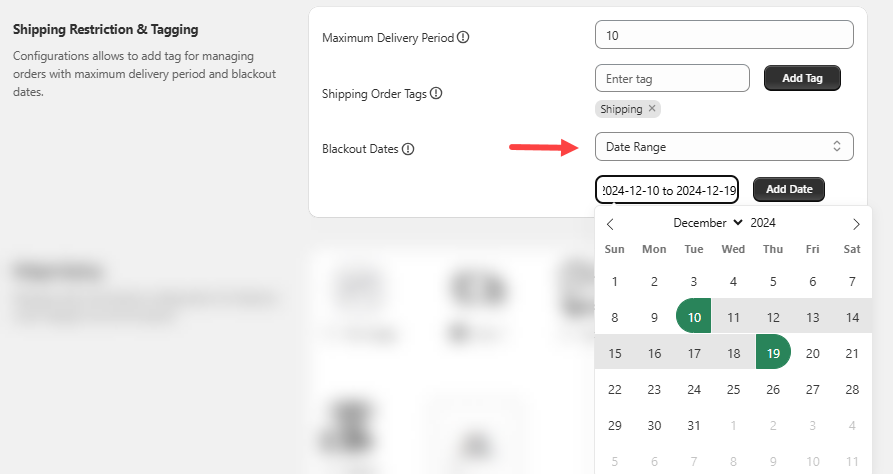
- Once you click on the Add Date button, the range will be listed under Selected Dates. Now, in order to delete; individually you can delete by clicking on the delete icon or else by clicking on Clear All, you can delete all at once.
Widget Styling
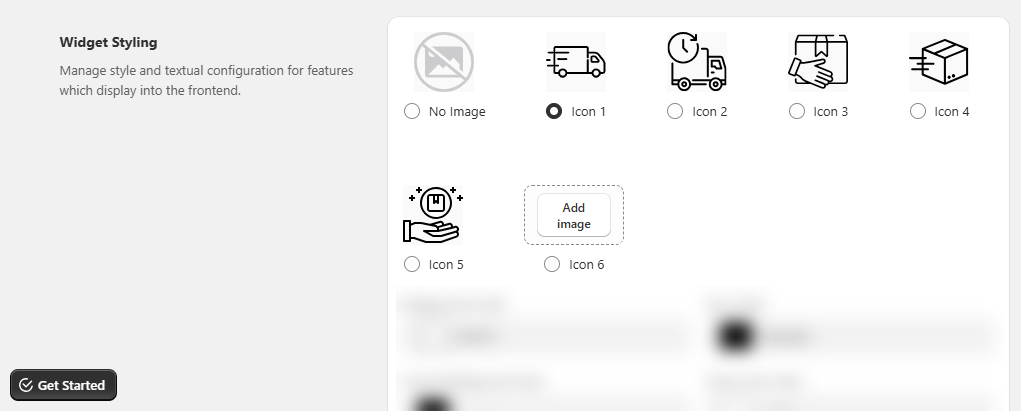
Icons
- Choose the icon you want to display on the front store for Shipping.
- You can as well upload an image through the Add Image field.
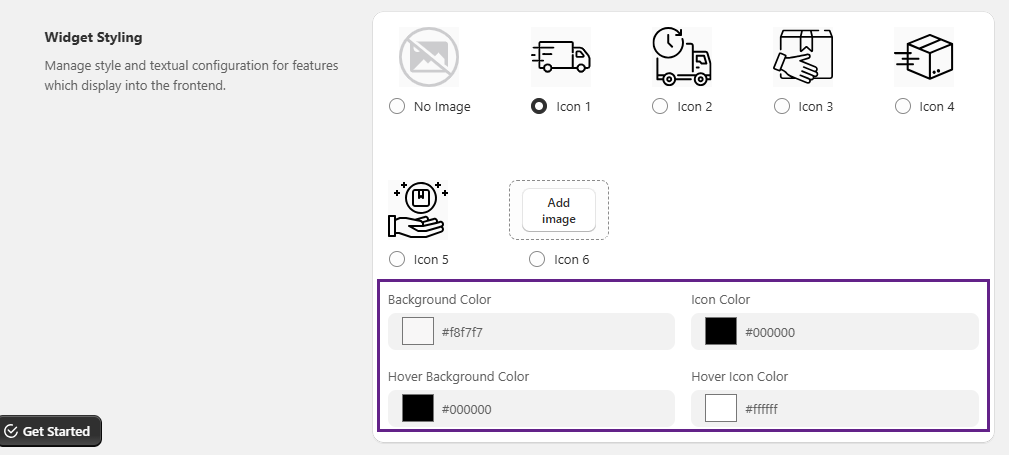
Color Configuration
- You can also configure Background color, Icon Color, Hover Background Color and Hover Icon Color via the color picker.
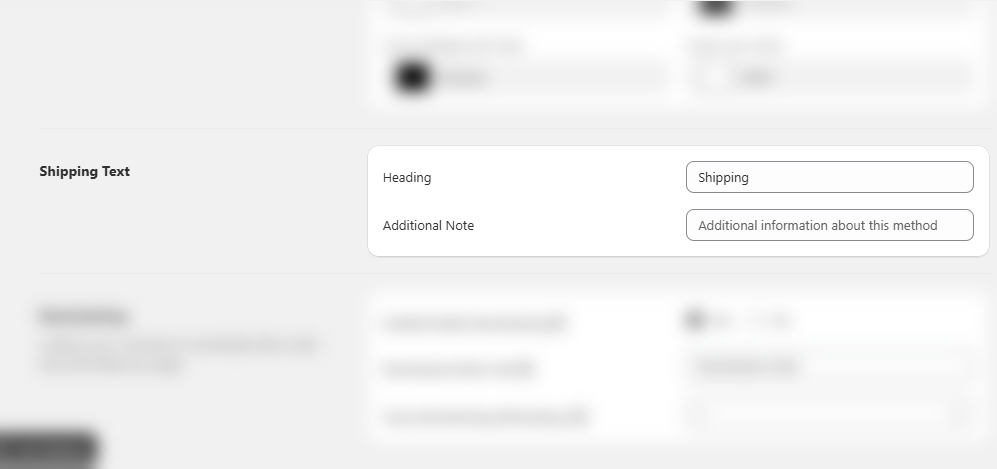
Shipping Text
- In this section, you can add the texts that you want to showcase on the front store for Heading and Additional Note.
Rescheduling
- Rescheduling is an add-on feature which means it can be accessed only by paying the mentioned amount.
- Enable the rescheduling feature.
- Enter the text further for Reschedule Button and then add the days before which you need to close the rescheduling in Close Rescheduling Before.

Order Status Page
Note: You can add the date information block and reschedule button to the Shopify order-status page.