

Create Zones
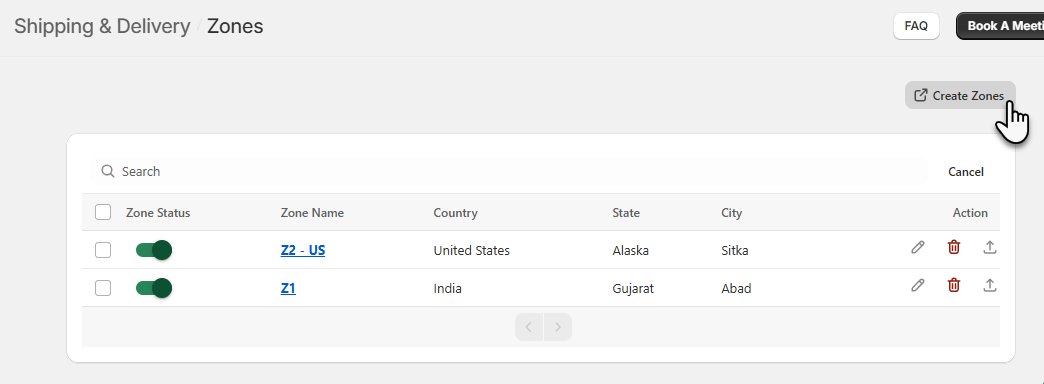
- Zones are designed specifically for local delivery. You can create multiple zones by simply adding the corresponding zip codes.
- You can add multiple zones for Local Delivery for your customers. Navigate to Create Zone, you can create the zones from here.
Zone Details
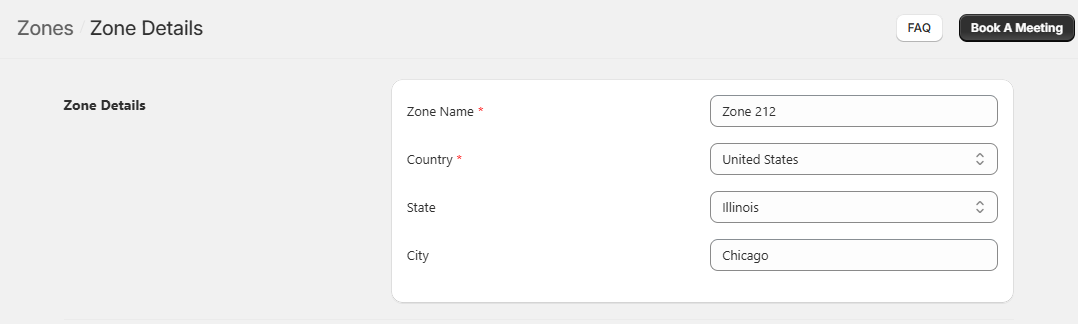
- You can set the name of the Zone Name.
- You can select the Country, State and insert the name of the City for which you want to create the zone.
Type of Zip Code
- There are 3 ways to add the zipcodes to the zones:
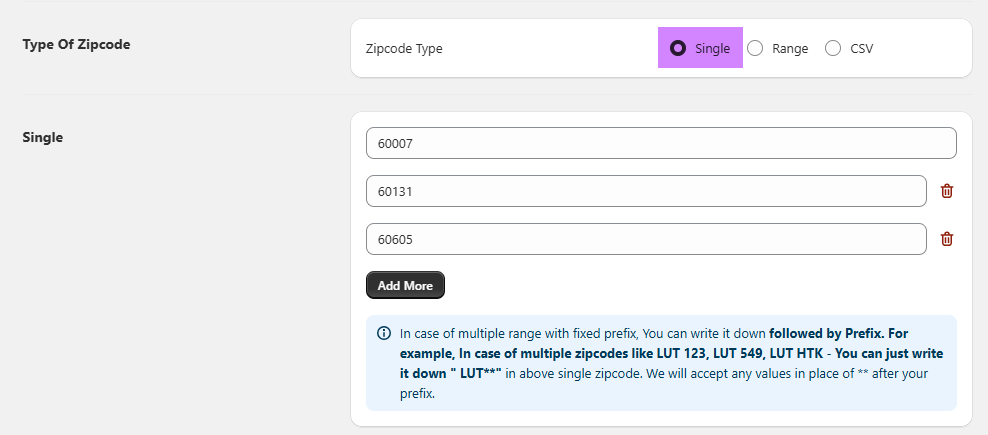
- Single
- You just need to enter a single zip code for your local delivery store.
- If you are entering multiple ranges with fixed prefix then you can write down the initials itself and it will be accepted.
- Also, by clicking on the Add More you can add more single zipcodes.
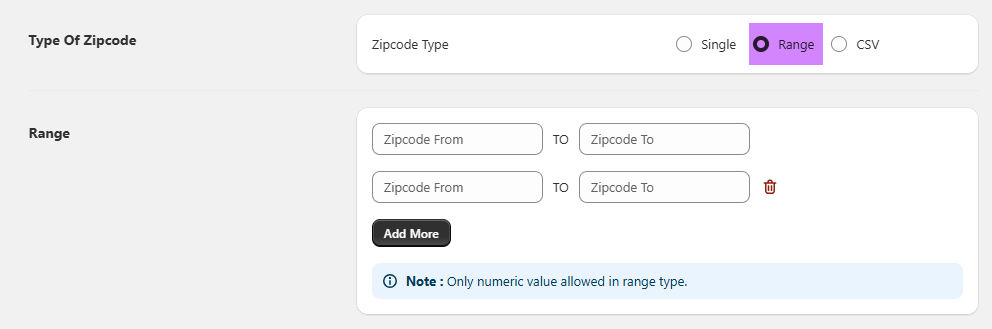
- Range
- You can set the range of zip codes in from and to.
- For ex: This adds 360051 to 360059 in between zones. Note that the range of the zipcode proceeds in ascending order only which means that if in From section 360051 is entered then the To section will not allow zip code lesser than that.
- Add More: By clicking on this button you can add more ranges.
- Also, you can delete a particular range by clicking on the Delete icon.
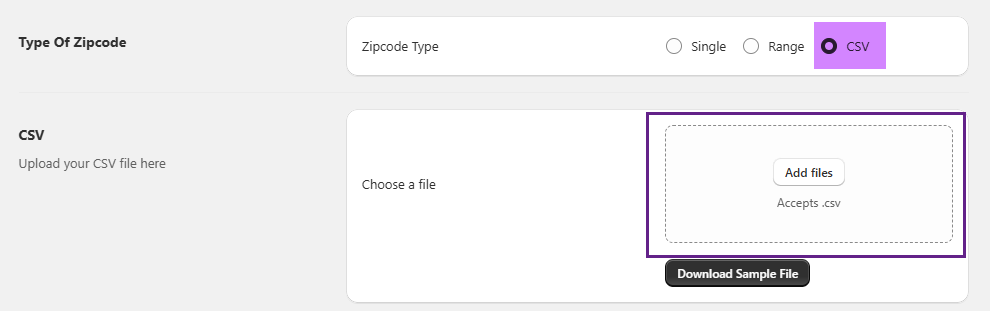
- CSV
- You can also upload the CSV file with zip codes. A sample file is also provided.
- After all the configurations, click on the Save button to save the configurations.
Zipcode Listing
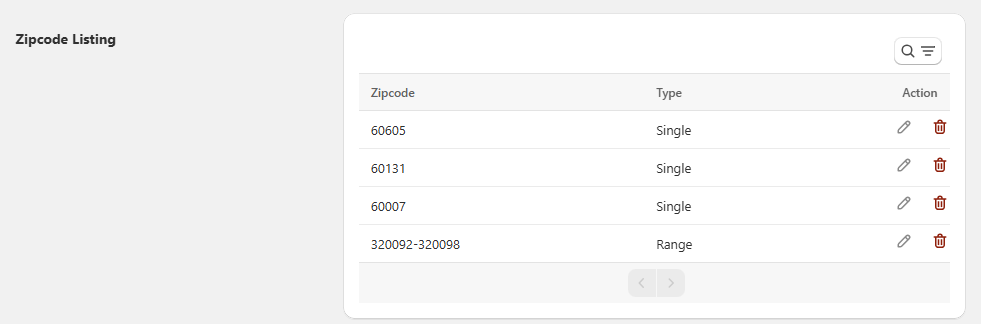
- Here you can see the listing view of the created zip codes.
- Zipcode and Type will be displayed in the grid. Also, you can perform Edit and Delete Action.
- You can create zones by adding individual zip codes or ranges of zip codes or both.
Zone Listing
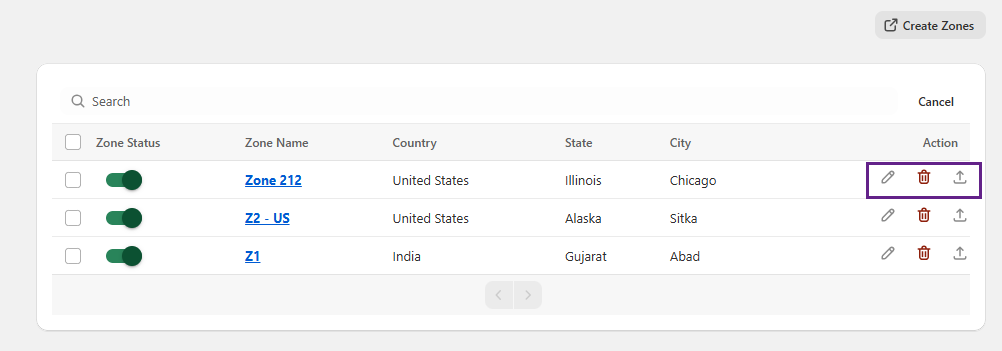
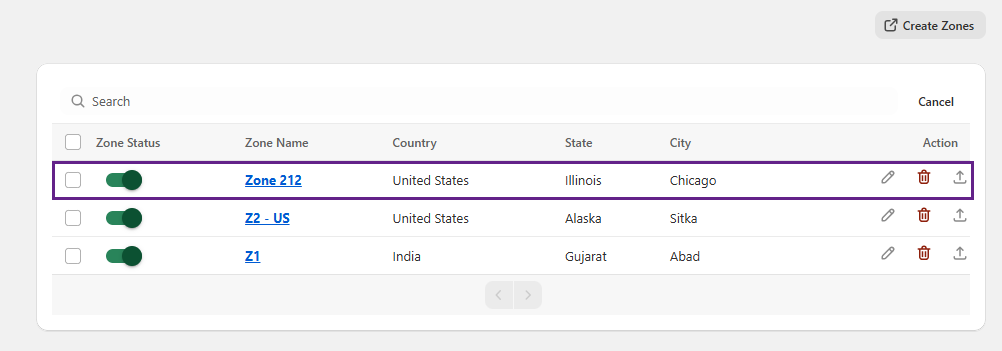
- The newly created zone will be listed in the Zone grid. Details such as Zone Status, Zone Name, Country, State and City will be displayed.
Actions
- You can also edit and delete zones as per your local store. Along with that you can as well download the entire details in CSV format into your system.